
Download MetaTrader 5
Choose MetaTrader 5 for Windows, macOS, Linux, WebTerminal, iPhone, iPad or Android.


Choose by device and workflow: Windows and macOS provide the complete desktop environment for MQL5, Expert Advisors and Strategy Tester; Linux runs MT5 through Wine; WebTerminal works in a browser; iPhone, iPad and Android are designed for mobile trading and account access.
MetaTrader 5 desktop download and installation
Windows and macOS provide the complete MetaTrader 5 desktop workspace for charts, orders, positions, MQL5 programs, Expert Advisors and Strategy Tester.
Linux uses Wine rather than a separate native build. Choose desktop when you need strategy development, backtesting, optimization or a persistent multi-chart workspace.
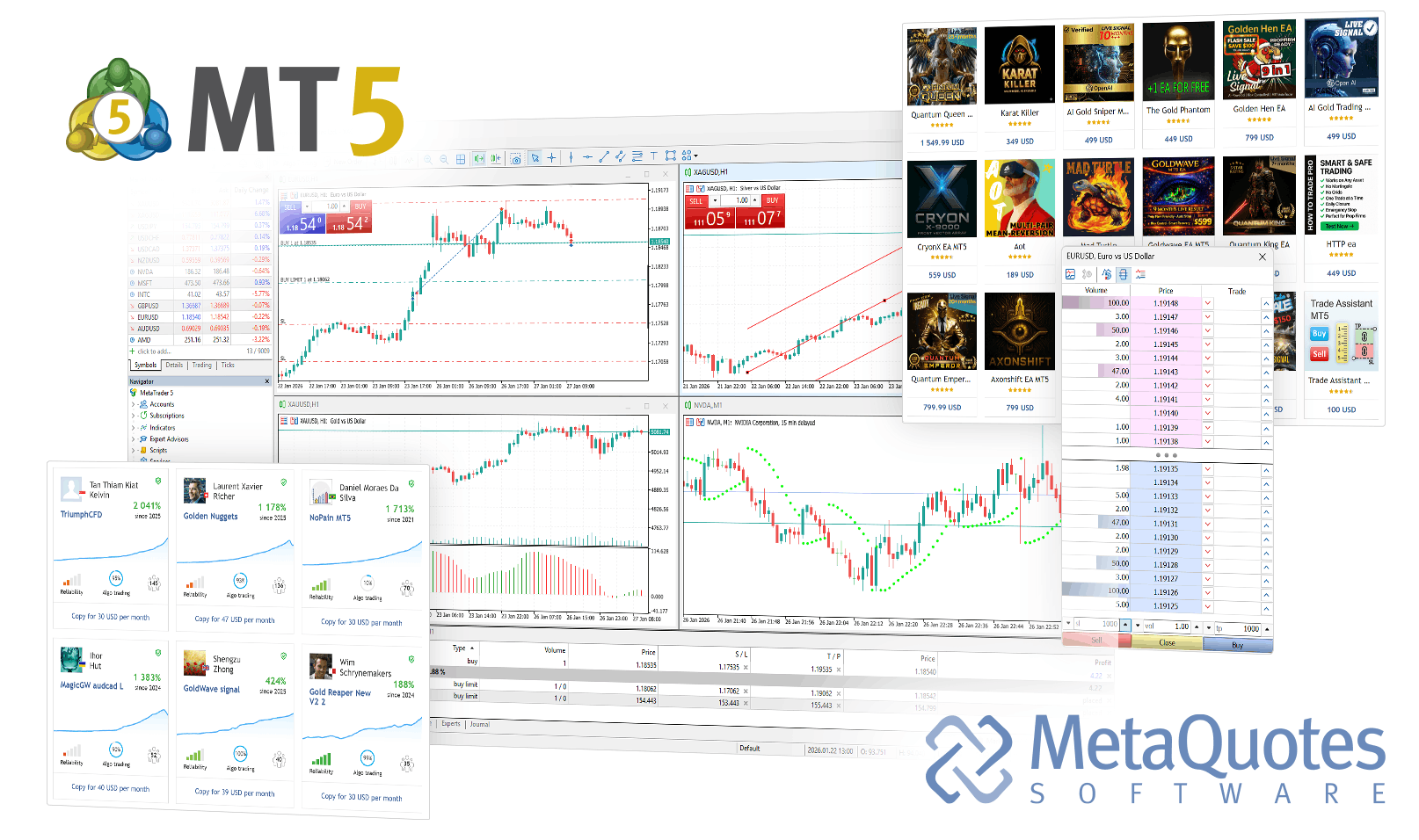
When the MetaTrader 5 desktop terminal is the right choice
Use desktop when you need the full MT5 workflow rather than browser-only or mobile account access.
- Work with multiple charts, symbols and timeframes in one workspace
- Use order and position management tools alongside Market Depth
- Apply built-in and custom indicators, objects and chart templates
- Run MQL5 Expert Advisors, custom indicators and scripts
- Backtest and optimize strategies with Strategy Tester
- Keep local profiles, templates, logs and data files
- Connect to the trading server assigned to your broker account
- Maintain a longer-running analysis and trading workspace
- Run automation locally or move selected workloads to a VPS
- Use a device where you control installation permissions and network access
When MetaTrader 5 WebTerminal makes more sense
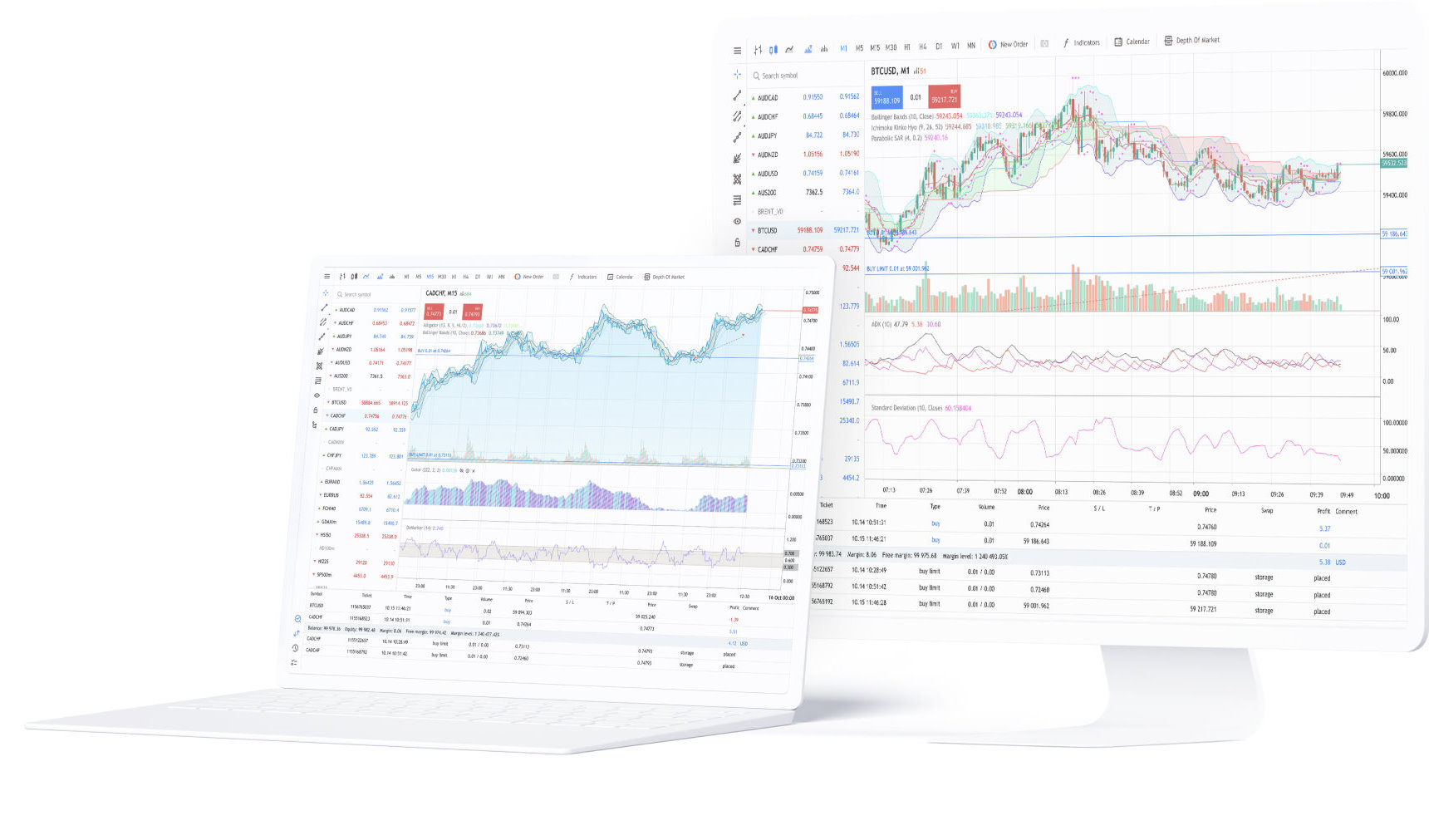
Use WebTerminal when you need browser-based access to an MT5 account without installing the desktop application.
- No Windows or macOS desktop installation is required
- Useful on temporary devices or systems where software installation is restricted
- Provides browser access to quotes, charts, account information and trading functions
- Does not replace desktop MQL5 development, Expert Advisor runtime or Strategy Tester
Install MetaTrader 5 on Windows
- Download the Windows installer and run it on the PC where you want to use MT5.
- Allow the terminal to complete its first launch before connecting a trading account.
- If you maintain multiple MT5 installations, keep their installation and data folders clearly separated.
Install MetaTrader 5 on macOS
- Download the macOS package and complete the normal application installation.
- Follow any macOS security prompt required for the first launch.
- After opening MT5, connect the correct broker server and confirm that quotes, symbols and account status load normally.
How to sign in after installing MetaTrader 5
Installing MT5 gives you the trading terminal, not a brokerage account. To connect an existing live or demo account, you need the account login, the relevant password and the matching broker server.
- Open the desktop terminal, WebTerminal or mobile app.
- Choose the option to connect an existing account and locate the correct broker server.
- Enter the account login and the password assigned to that account.
- After connection, check quotes, visible symbols, account status and trading permissions.
Download MetaTrader 5 for iPhone, iPad and Android
The mobile apps connect to broker servers for quotes, charts, Market Depth, orders, positions and trading history on phones and tablets.
Use mobile when you need account access away from the desktop. MQL5 development, Expert Advisor runtime, Strategy Tester and optimization remain desktop workflows.
MetaTrader 5 for iPhone and iPad
The iOS app connects to broker accounts and supports market monitoring, technical analysis, Market Depth, trade orders, positions and account history.
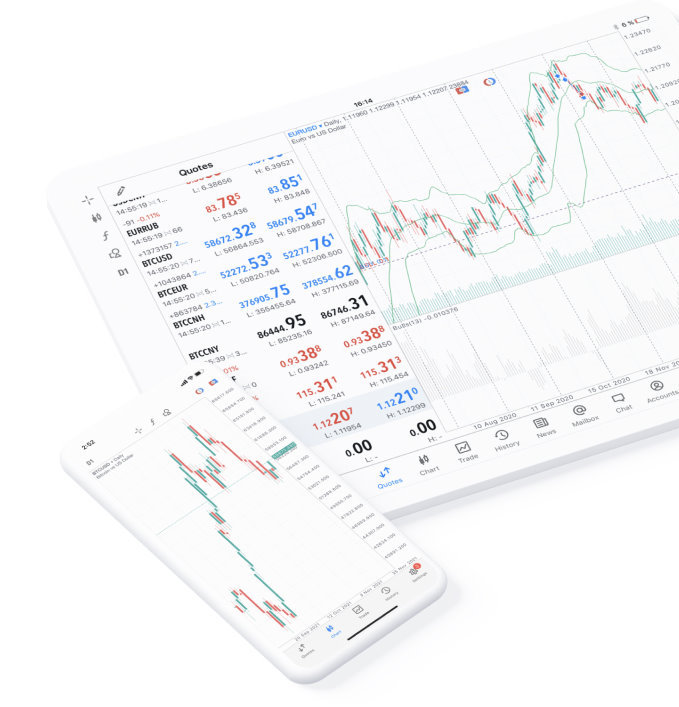
Use the iPhone or iPad app to monitor markets and manage trades when you are away from the desktop. It is a mobile trading terminal, not a replacement for desktop MQL5 development or Strategy Tester.
- Sign in to existing live or demo trading accounts
- View real-time quotes and interactive charts
- Use technical indicators and analytical tools
- Open Market Depth and place supported market or pending orders
- Manage positions, Stop Loss, Take Profit and trading history
- Use accounts configured by the broker for netting or hedging
- Receive financial news, alerts and push notifications
- Available symbols, prices and permissions depend on the connected broker server
MetaTrader 5 for Android and APK
The Android app is available through Google Play, AppGallery and the existing APK download option for supported Android phones and tablets.
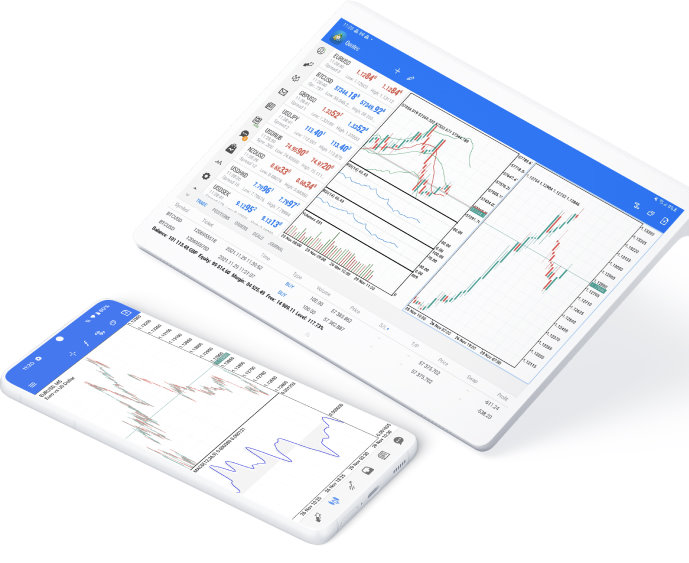
After installation, connect the broker server assigned to your account. That connection supplies the symbols, prices, account settings and trading permissions shown in the app.
- Sign in to existing live or demo trading accounts
- View real-time quotes, interactive charts and technical indicators
- Use Market Depth and supported trading orders
- Manage positions, pending orders and trading history
- Use accounts configured by the broker for netting or hedging
- Receive financial news, platform messages and push notifications
- Trading symbols and conditions come from the connected account and server
- Choose Google Play, AppGallery or the existing APK option for your device and keep the app updated
Install and sign in to MetaTrader 5 mobile
Installing the mobile app does not automatically connect a brokerage account. Your login, password and broker server determine which trading environment opens.
- Choose the App Store, Google Play, AppGallery or APK option that matches your device.
- At first launch, select an existing account or create a demo account and confirm the correct broker server.
- Use a trusted device and network when entering account credentials or saving login information.
MetaTrader 5 download, installation and login FAQ
Answers about choosing a version, installing MT5 on Windows, Mac or Linux, using WebTerminal or mobile, downloading APK files and connecting an existing broker account.